
How to Search Map Coordinates for UK Sites
A postcode is a useful starting point, until it takes you to the farmhouse instead of the barn you need. Or to the right road, but the wrong end of it. If you need to search map coordinates for a field, building plot or property without a clear address, a coordinate search can save a lot of moving around the map. The important part is choosing the right search format, then checking the result before ordering.
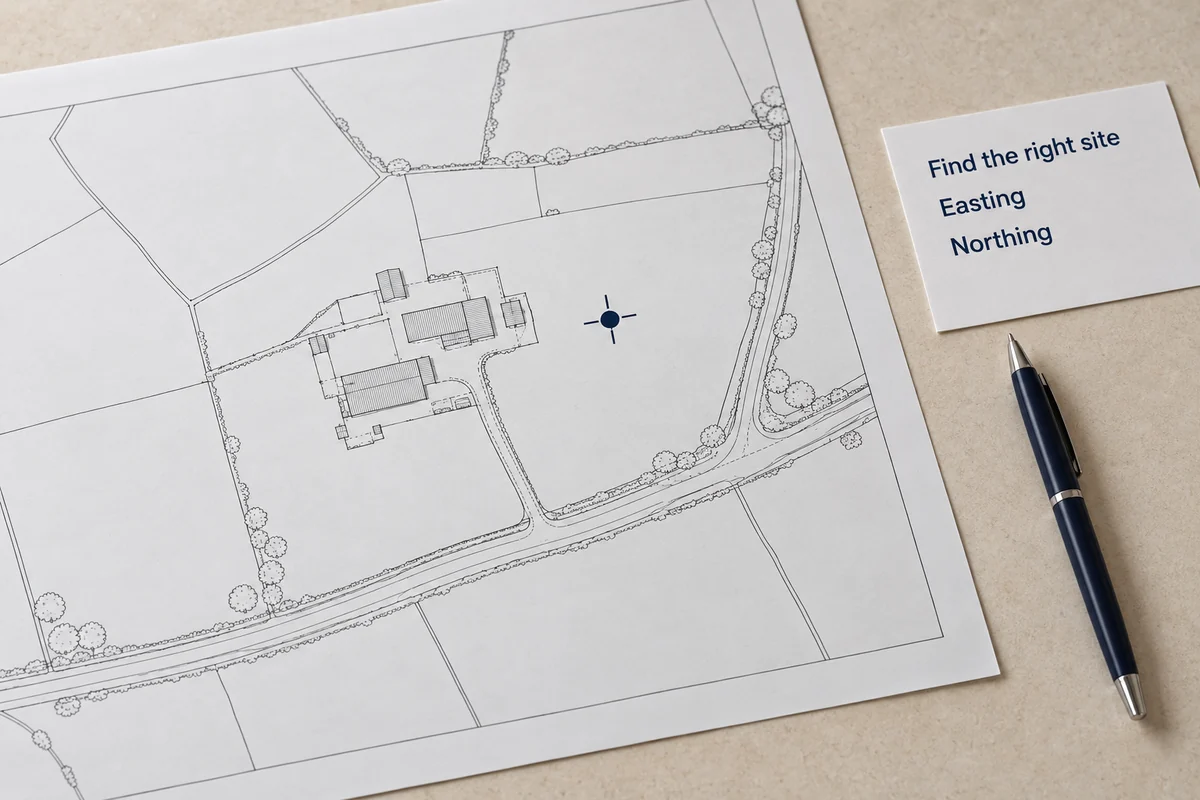
You do not need specialist mapping software to get started. UK Planning Maps has an Advanced Search for eastings and northings or latitude and longitude. This guide explains what to enter, what to check and how to turn the location you find into a useful planning map. Our mapping covers England, Scotland and Wales, not Northern Ireland.
What are map coordinates?
Map coordinates describe a position using a particular reference system. They help you find a point; they do not describe the whole piece of land around it. For planning maps, there are two common types to recognise.
British National Grid coordinates use eastings and northings, measured in metres. Enter the easting first and the northing second. Our search labels these fields “OS East/North” and identifies the datum as OSGB36. A datum is the reference framework used to position the coordinates.
Latitude and longitude are different. These describe a position in degrees, and our “Lat/Long” search uses WGS84. For decimal coordinates, put latitude in the first field and longitude in the second. Keep the decimal points and any minus sign. Longitude west of Greenwich is negative; locations east of it have positive longitude, so not every British longitude needs a minus sign.
You may also receive an OS grid reference beginning with two letters. Those letters identify a particular grid square and are part of the reference, not something to delete. Ask for the equivalent full numeric eastings and northings before using the OS East/North fields. Ordnance Survey explains how lettered grid references work.
When to search map coordinates instead of an address
Coordinates are particularly helpful where the land does not have its own postal address. Think of a paddock behind a house, a barn reached by a private track or a building plot that has not yet been allocated a postcode.
They are also useful when an address covers several buildings. Searching for a farm name might get you to the main house, whereas the application concerns a workshop further along the yard. A coordinate supplied by your architect or surveyor can help you find the intended place more quickly.
This approach is recognised by the Planning Portal's guidance for sites without a postcode, which explains using eastings and northings when starting an application with a missing address.
Before you copy a coordinate, ask what it represents. Is it the entrance, the centre of a field or a survey point beside a building? That small detail can prevent confusion later. For a long access track, the entrance alone will not tell you how much map coverage you need.
For larger plots, our sister website's rural location-plan guide covers choosing the extent and showing access without treating the whole farm as the application site.
How to search map coordinates accurately
Start by opening Advanced Search. Match your information to the field labels: OS East/North for full British National Grid coordinates, or Lat/Long for WGS84 latitude and longitude. Do not identify a coordinate system just by counting the digits. If a drawing only says “X” and “Y”, ask its author which system was used.
Copy the values carefully into their separate fields. If you have degrees, minutes and seconds rather than decimal degrees, ask for the decimal version or use a suitable conversion tool. Simply removing the degree symbols will not convert the numbers correctly. When the two fields are correct, select Next to continue.
Once you have located the point, compare the surroundings with what you know of the site. Look for the road junction, the shape of the main buildings and the route into the property. Check more than one recognisable feature, especially where neighbouring fields look alike.
No coordinates to hand? The Google Search option on the same page lets you find the area, zoom in and click to place a pin, then choose Next. This helps locate the site before you preview the Ordnance Survey mapping; it is not a Google screenshot to submit with your application.
A practical check before ordering
Zoom out first to confirm you are in the right locality, then look more closely at the site. A point near a gate may be perfectly correct even though it is not in the middle of the land you want to show.
Before paying, check that:
- The correct parcel and any necessary access fit inside the map area.
- Nearby roads or buildings make the location recognisable.
- The selected scale and sheet size give enough coverage without losing useful detail.
- Any boundary you have drawn follows the intended application site, not just the search marker.
- The north arrow, scale information and mapping attribution remain clear.
If you are passing the job to someone else, keep the coordinates with a short description such as “barn east of the main farmhouse”. Include the coordinate system as well. Numbers without that context can create another round of questions.
From coordinates to a planning-ready map
Finding the land is the first step. Next, choose the plan needed for your application. A location plan shows where the site sits in the surrounding area; a site or block plan gives a closer view for showing the development and its relationship to existing features.
In England, government guidance gives typical location-plan scales of 1:1,250 or 1:2,500. Site or block plans commonly use 1:200 or 1:500. A rural address does not automatically mean you should choose 1:2,500: check what remains legible and what the receiving council asks for. Requirements differ between UK nations and authorities.
The same English guidance says the red line should include all land needed for the development, including necessary access. Other nearby land owned by the applicant is shown with a blue line. Neither a search pin nor a map feature decides those boundaries for you. OS mapping shows physical features, not legal ownership boundaries.
UK Planning Maps supplies licensed Ordnance Survey MasterMap mapping. Select the coverage, add the required boundary and check the preview before completing your order. Proposed works and other application drawings may still need preparing separately.
Searching with coordinates does not make the downloaded PDF georeferenced. Our PDFs are not georeferenced; our DWG and DXF CAD maps are. Ask your designer which format they need before ordering.
There is help if a rural site needs more explanation. In a customer review on our homepage, S P George described how Evelyn helped to “draw my boundary lines for me and add the road name in a rural area”. It is a useful example of why identifying the land sometimes involves more than entering a postcode.
Common coordinate search problems
If the result is nowhere near your site, check the basics before trying another location. Have the two values been reversed? Has a minus sign disappeared? Are you using the right fields? Re-entering the same numbers in a different order is only helpful once you have checked what each number means.
If the point is close but not quite right, check its source. A phone reading, a casually dropped pin and a measured survey point are not interchangeable. Extra decimal places do not guarantee greater accuracy. NIST's explanation of GPS positioning helps explain why a phone location should not be treated as a surveyed boundary position.
If a building is missing, it does not necessarily mean the coordinates are wrong. Compare the surrounding features and check whether the site has changed. Do not shift the whole plan to make one feature line up, or assume a field edge establishes ownership.
Still unsure? Call 01856 898 022 before purchasing. Have the coordinates, their source and a brief site description ready. Once you are happy with the location, use Advanced Search to find your plan and check the full site in the preview.
Ready to Get Your OS Plans?
Every plan is instantly downloadable, Planning Portal‑compliant, and includes all required elements. Get your plan now and submit your application with confidence.